How Do You Remove Personal Data Before Selling Your Vehicle?
Posted at Sun, Jun 28, 2026 5:41 PM
How Do You Remove Personal Data Before Selling Your Vehicle?
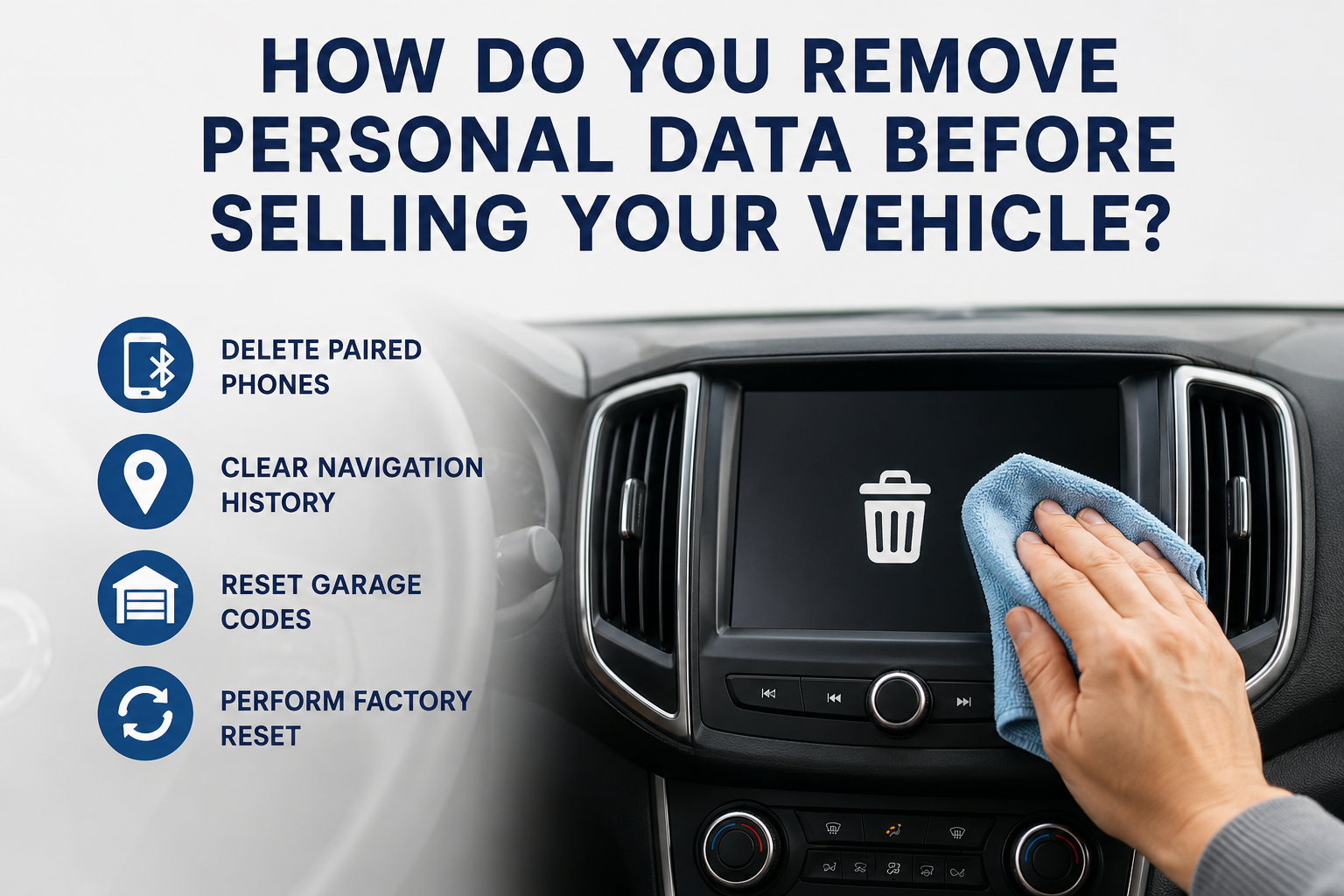
You remove personal data before selling your vehicle by deleting paired phones, clearing navigation history, removing saved addresses, resetting garage door codes, and performing a factory reset on the infotainment system.
Top 3 Takeaways
- Delete all paired phones, Bluetooth contacts, call logs, messages, and app connections before you hand over the keys.
- Clear saved navigation data, including home, work, recent destinations, favorite places, and route history.
- Reset personal features like garage door buttons, Wi-Fi connections, driver profiles, and built-in apps so the next owner cannot access your information.
Selling or trading in your vehicle is exciting, but there is one step many drivers forget: removing personal data.
Modern vehicles can store a surprising amount of private information. Your car may remember your phone contacts, recent calls, text message previews, saved addresses, garage door codes, Wi-Fi networks, and even app login details.
Before you sell, trade, or donate your vehicle, take a few minutes to wipe that information clean. It protects your privacy, helps the next owner start fresh, and makes the handoff smoother.
Why Should You Remove Personal Data From Your Car?
You should remove personal data from your car because many infotainment systems store information from your phone, navigation use, connected apps, and vehicle settings.
When you pair your phone to a vehicle, the system may sync contacts, favorites, call history, music apps, voice commands, and message notifications. If your vehicle has built-in navigation, it may also save your home address, workplace, favorite locations, and recent trips.
That information may not seem like a big deal until someone else owns the vehicle. A buyer does not need access to where you live, where you work, who you call, or which garage door your vehicle can open.
Think of your vehicle like a smartphone or laptop. Before you pass it to someone else, you want to sign out, delete personal information, and reset it properly.
What Personal Data Can a Vehicle Store?
The exact data depends on the year, make, model, trim level, and infotainment system. Newer vehicles usually store more information because they have more connected features.
Here are common types of personal data your vehicle may save:
|
Vehicle Feature |
Personal Data It May Store |
What To Remove |
|
Bluetooth |
Paired phones, contacts, call logs, messages |
Delete all devices and synced data |
|
Navigation |
Home address, work address, recent destinations |
Clear history and saved places |
|
Garage door buttons |
Garage or gate access codes |
Reset programmable buttons |
|
Driver profiles |
Seat, mirror, audio, climate, and phone settings |
Delete or reset profiles |
|
Wi-Fi hotspot |
Network names and passwords |
Forget networks and reset hotspot settings |
|
Apps and subscriptions |
Login info, connected accounts, trial services |
Sign out and remove accounts |
|
Voice assistant |
Saved commands or learned preferences |
Clear voice data if available |
|
USB/media |
Device history, playlists, media indexing |
Remove devices and clear media data |
Even older vehicles can store Bluetooth phone data. Newer vehicles with connected services, built-in navigation, and mobile app controls may require a more complete reset.
Step 1: Delete All Paired Phones
Start with the Bluetooth menu. This is one of the most important steps because your phone is often the main source of synced personal information.
Go to your vehicle’s settings menu and look for Bluetooth, phone, device manager, or connected devices. Delete every paired phone, not just your own.
If you have multiple drivers in the household, check for each phone separately. Vehicles often store several devices at once, including old phones you may have forgotten about.
After deleting the device, check whether the system gives you an option to remove contacts, messages, or call history. Some systems delete that information automatically when you remove the phone, while others may require a separate step.
Step 2: Clear Contacts, Call Logs, and Messages
Deleting the phone connection may not always remove every synced item. That is why you should check the phone, contacts, and communication menus before finishing.
Look for saved contacts, favorites, recent calls, missed calls, voicemail shortcuts, and message settings. If your vehicle showed text messages on the screen, remove message permissions and delete stored message data if the system allows it.
This step is especially important if you used the vehicle for work. Client names, customer calls, employee contacts, or private messages should not stay in the system after the sale.
Once you clear the data, turn the vehicle off and back on. Recheck the phone menu to make sure no old information still appears.
Step 3: Clear Navigation History
Navigation data is one of the most sensitive things your vehicle can store. It may include your home, workplace, school, gym, family addresses, doctors’ offices, and places you visit often.
Open the navigation menu and look for settings, destination history, recent places, saved places, favorites, or address book. Delete your home address, work address, saved destinations, and recent searches.
Do not forget about favorite routes. Some systems save frequent routes or suggested destinations based on your driving habits.
If your navigation system has a full reset option, use it after manually clearing saved addresses. This gives you an extra layer of protection.
Step 4: Remove Home and Work Addresses
Many drivers save home and work addresses for convenience. Before selling your vehicle, those should be the first navigation entries you remove.
Even if you clear recent destinations, home and work may remain stored in a separate menu. Check the navigation address book, user profile, map settings, and voice command shortcuts.
This matters because a new owner or test driver could easily press “Go Home” and see your address. That is a privacy risk you can avoid in less than a minute.
After deleting home and work, try using the voice command or navigation shortcut to confirm those addresses are gone.
Step 5: Reset Garage Door and Gate Codes
If your vehicle has programmable garage door buttons, clear them before selling or trading it in. These buttons may be built into the visor, overhead console, or rearview mirror area.
Many systems let you erase all programmed buttons by pressing and holding two outer buttons until the indicator light changes. However, the process can vary by vehicle and system.
Check your owner’s manual for the correct reset steps. You can also search the infotainment settings for garage opener, universal remote, or HomeLink-style controls.
Do not skip this step. If a garage or gate code remains programmed, the next owner may have access to your home, apartment gate, office garage, or storage area.
Step 6: Delete Driver Profiles
Many newer vehicles allow multiple driver profiles. These profiles can save seat position, mirror settings, climate preferences, radio favorites, display layouts, phone connections, and navigation preferences.
Open the profile menu and delete every saved driver profile. If the system asks whether you want to delete linked data, choose yes.
Some vehicles connect profiles to keys, apps, or cloud accounts. If your profile is tied to a mobile app or manufacturer account, sign out from the vehicle and remove the vehicle from the app when appropriate.
Deleting profiles helps the new owner start with a clean setup. It also prevents your preferences and personal shortcuts from carrying over.
Step 7: Sign Out of Apps and Connected Services
If your vehicle has built-in apps, connected services, satellite radio, streaming, remote start, or a manufacturer mobile app, sign out before selling.
Check for accounts connected to music, maps, voice assistants, remote access, Wi-Fi, toll services, or subscription features. Even if the subscription is expired, your login may still be saved.
Also, remove the vehicle from your phone’s companion app. This may include remote lock and unlock, location tracking, maintenance alerts, and vehicle status updates.
If you are trading the vehicle in, ask the dealership if there are any connected services you should cancel or transfer. This helps prevent billing issues and keeps your account secure.
Step 8: Forget Wi-Fi Networks and Hotspot Settings
Some vehicles can connect to home Wi-Fi networks or use a built-in hotspot. If yours does, clear those settings before the sale.
Go to the connectivity menu and remove saved Wi-Fi networks. If your vehicle stores hotspot names, passwords, or connected device history, reset those settings too.
This is a small step, but it matters. You do not want your home network name or password-related settings left behind.
If the vehicle has a cellular data plan, check whether it is tied to your personal account. Cancel or transfer the plan before handing over ownership.
Step 9: Remove USB Devices, SD Cards, and Toll Passes
Before the vehicle leaves your possession, check every storage area and port. Look in the center console, glovebox, door pockets, seatback pockets, trunk, cargo area, and under-seat storage.
Remove USB drives, charging cables, SD cards, CDs, garage remotes, insurance cards, registration papers, receipts, and toll transponders. Also check for dash cams or memory cards that may contain driving footage.
Many people forget toll passes because they are stuck to the windshield. Remove yours before the sale so toll charges do not continue hitting your account.
This is also a good time to remove personal documents from the glovebox. Keep service records you want to provide, but remove anything with private financial or insurance information.
Step 10: Perform a Factory Reset
After you manually remove key information, perform a factory reset on the infotainment system if your vehicle offers that option.
A factory reset may be listed under settings, system, general, restore defaults, reset vehicle data, erase personal data, or master reset. The exact wording varies by brand.
This reset can clear many saved preferences at once. It may remove phone pairings, radio presets, navigation history, app logins, profiles, and system settings.
However, do not rely only on the factory reset. It is still smart to manually delete sensitive items first, then use the reset as the final cleanup step.
Personal Data Removal Checklist Before Selling Your Vehicle
Use this checklist before you trade, sell, or donate your vehicle.
|
Task |
Completed? |
|
Delete all paired Bluetooth phones |
|
|
Clear contacts, call logs, and messages |
|
|
Remove Apple CarPlay or Android Auto connections |
|
|
Clear navigation history |
|
|
Delete home and work addresses |
|
|
Remove saved favorite destinations |
|
|
Reset garage door or gate buttons |
|
|
Delete driver profiles |
|
|
Sign out of apps and connected services |
|
|
Remove vehicle from mobile apps |
|
|
Forget Wi-Fi networks and hotspot settings |
|
|
Remove USB drives, SD cards, and toll passes |
|
|
Clear radio presets if desired |
|
|
Perform factory reset |
|
|
Check glovebox, console, trunk, and storage areas |
Should You Remove Your Phone From Apple CarPlay or Android Auto?
Yes, you should remove your phone from Apple CarPlay or Android Auto before selling your vehicle.
Start by deleting the phone from the vehicle’s device list. Then open your phone settings and remove the vehicle from your CarPlay or Android Auto connections.
This helps break the connection from both sides. It also keeps your phone from trying to reconnect if you are near the vehicle during a trade-in or sale.
If you used wireless CarPlay or wireless Android Auto, this step is especially important. Wireless systems can reconnect more easily than plug-in systems if the phone remains authorized.
Should You Leave Service Records in the Vehicle?
You can leave helpful service records, but remove anything that includes private personal information.
Buyers often appreciate maintenance records because they show oil changes, repairs, tire replacements, and other care history. Those records can make the vehicle feel more trustworthy.
Before handing them over, check for your address, credit card details, phone number, account numbers, or personal notes. Black out or remove anything sensitive.
A clean folder of basic service history is useful. A glovebox full of private paperwork is not.
What If You Cannot Figure Out the Reset Process?
If you cannot find the reset process, check the owner’s manual or search the infotainment settings carefully. Look under system, privacy, connectivity, navigation, phone, profiles, and vehicle settings.
You can also ask a dealership team member to help you locate the right menu. Many vehicles have different steps depending on the trim level and software version.
The most important thing is not to ignore it. Even if you cannot perform a full factory reset, you can still delete phones, addresses, garage codes, and accounts manually.
A few minutes of cleanup can prevent a lot of privacy headaches later.
Final Thoughts
Before selling or trading your vehicle, treat your car like a digital device. Delete your phone, clear your navigation history, reset garage codes, sign out of apps, remove personal items, and perform a factory reset when available.
This simple process protects your privacy and gives the next owner a clean start. It also makes your trade-in or private sale feel more organized and professional.
Ready to sell or trade your current vehicle? Visit RC Hill Mitsubishi, browse our inventory, or get started today with our secure credit application.
Frequently Asked Questions About Removing Personal Data From a Vehicle
How do I remove my personal information from my car before selling it?
Remove your personal information by deleting paired phones, clearing contacts and call logs, erasing navigation history, removing saved addresses, resetting garage door buttons, signing out of apps, and performing a factory reset. You should also remove personal papers, toll passes, USB drives, and SD cards from the vehicle.
Does a factory reset delete everything from a car?
A factory reset can delete many saved settings, but it may not remove everything in every vehicle. It is best to manually delete sensitive data first, including phones, addresses, profiles, apps, and garage codes, then perform the factory reset as the final step.
Should I delete my home address from my car navigation system?
Yes, you should always delete your home address before selling or trading your vehicle. Also, remove your work address, favorite destinations, recent routes, and any saved places that could reveal private information.
Can a car store my text messages and contacts?
Yes, many vehicles can store or display synced contacts, call logs, and text message notifications after you pair your phone. Delete your phone from the Bluetooth or device menu, then check the communication settings to make sure contacts and messages are gone.
Do I need to reset my garage door opener before selling my car?
Yes, reset any built-in garage door or gate opener before selling your vehicle. If the code stays programmed, the next owner may be able to access your garage, gated community, office parking area, or storage space.
Should I remove my vehicle from its mobile app?
Yes, remove the vehicle from any connected mobile app before selling it. This helps stop remote access, vehicle location tracking, service alerts, and account-related notifications after the vehicle changes ownership.